This blog post was co-authored by José Luis Tamez de Gyves, Client Executive Manager, Dolby.
Remember watching grainy web videos in tiny windows that constantly paused to buffer? How about those streaming videos with washed-out colors, inaccurate skin tones, and a loss of detail in both shadows and highlights? We’ll show how to implement Dolby Vision and Dolby Atmos using Amazon Web Services (AWS) Elemental services for live and video on-demand (VOD) content. We’ll transform standard video and audio into cinema-quality experiences by upgrading color ranges, adding intelligent brightness optimization, and creating immersive 3D sound.
In the early 2010s, Dolby Laboratories engineers tackled a specific problem: Why video sunsets looked washed out on TVs. Dolby applied their cinema audio expertise to video quality. First, they realized that old cathode ray tube (CRT)-based standards were limiting image quality. To overcome these limitations and deliver brighter images with richer colors, they created what we now know as high dynamic range (HDR) video, based on the perceptual quantizer (PQ) curve.
A second challenge emerged: How to maintain the creative intent across different devices. Dolby’s solution: Embedding optimization instructions in the video signal so each display could adjust the image to its capabilities. Unlike traditional HDR, which uses one master image across all displays, Dolby Vision optimizes the image for each display’s specific capabilities by using dynamic metadata.
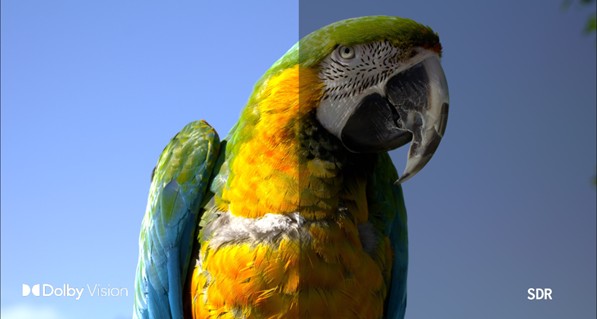
Figure 1: Dolby Vision compared with standard dynamic range.
Dynamic metadata in Dolby Vision is shot-by-shot instructions embedded in the video signal that tell each display how to optimize the image for its specific capabilities. Each frame includes specific instructions for brightness levels, shadow detail, and color mapping. This provides frame-by-frame optimization instructions for the display.
Figure 2: Chart comparing display brightness.
With an understanding of the basics of Dolby Vision, let’s move onto Dolby Atmos and what it does for sound innovations.
Sound systems 5.1 and 7.1 have a limitation: They place sound in a circle around listeners, but real sound exists in three-dimensional space. Birds chirp above. Footsteps echo below. Rain falls down.
Dolby Atmos uses object-based audio instead of channels. It says: “There’s a helicopter. It should be here in three-dimensional space.” Then the system figures out which speakers (however many there are, including ones on the ceiling) should activate to place that sound precisely where it belongs.
Ceiling speakers were a key innovation. By adding height channels, Dolby Atmos creates that third dimension. The helicopter can now fly overhead, rather than move only horizontally. Dolby Atmos is available in everything from soundbars to headphones.
Video 1: Dolby Atmos evolution from stereo to immersive spatial audio (visual representation only, no sound included).
Now that we have an overview of Dolby Vision and Dolby Atmos, we need to highlight a color conversion tool before starting our AWS Elemental services solution.
A 3D look-up table (LUT) is a color conversion tool. Think of it as a translation guide that tells your video how to convert colors from one format (such as standard dynamic range (SDR)) to another (like HDR). Unlike a 1D LUT, which adjusts individual color channels independently, a 3D LUT considers the relationships between red, green, and blue channels together. It allows for complex color transformations, such as creating specific cinematic looks, matching camera profiles, or converting between different color spaces.
In our solution we use the .cube format. It can be applied in video edition or video production software and various camera monitoring systems to achieve consistent color appearance across different devices and workflows. The 3D LUT file we will use is LUT 3D File SDR to HDR (located under Prerequisites).
NOTE: Once you click on the link it will automatically download to your computer. This file is a test file generated for demonstration purposes only. You can create your own file using professional video editing software tools.
With the basics of Dolby Vision, Dolby Atmos and LUTS explained, we can begin to create our cinema-quality experience with upgraded color ranges and intelligent brightness optimization, along with immersive 3D sound.
First you will need to make certain that you have:
Also, make certain that your equipment meets the necessary requirements:
Step 1. AWS Elemental MediaLive configuration
AWS Elemental MediaLive and MediaConvert handle the encoding and transcoding needed for processing the Dolby Vision stream once Dolby Vision has added in the dynamic metadata. Dolby Vision combines an HEVC encoded stream with the Dolby metadata. The metadata is carried as a reference processing unit (RPU) sub-stream, which is the frame-by-frame dynamic metadata, stored in private MPEG network abstraction layer (NAL) units.
AWS Elemental MediaLive analyzes the HDR input video and generates Dolby Vision dynamic metadata. It packages that metadata into the RPU format and mixes it with the HEVC elementary stream, with the help of a LUT 3D file.
For this part of the solution we will have the configuration convert the color space from SDR (Rec. 709) to Dolby Vision (profile 8.1 is Dolby Vision with HDR10 cross-compatibility).
To use AWS Elemental MediaLive to enable Dolby Vision in your live stream use the follow steps:
Figure 3: Input Color Space.
Figure 4: Color Correction settings.
Figure 5: H.265 Packaging Type.
Figure 6: Codec Details profile.
Figure 7: Color Space conversion.
Figure 8: Audio Input configuration.
Figure 9: Audio Output configuration.
Step 2. AWS Elemental MediaPackage V2 configuration
Dolby Vision and Dolby Atmos are supported in AWS Elemental MediaPackage V2. We will be using this version in our configuration:
Figure 10: Origin Endpoint configuration.
Figure 11: Manifest definition.
Step 1. AWS Elemental MediaConvert configuration
Figure 12: Video selector and Video correction.
Figure 13: 3D LUT configuration.
Figure 14: Output Group configuration.
Figure 15: Codec Details configuration.
Figure 16: Dolby Vision configuration.
Figure 17: Audio Input remix.
Figure 18: Dolby Atmos configuration.
This solution can deliver cinema-quality experiences to millions of viewers without the need for specialized equipment. It improves colorimetry by mapping colors effectively and takes advantage of HEVC for significant bit savings, averaging around 40%.
Without requiring a viewer to have specialized equipment, you can deliver cinema-quality video and audio. The process involves using a LUT file to convert SDR to HDR. It then generates frame-by-frame Dolby Vision metadata to optimize the image for each display.
AWS Elemental MediaConvert handles video encoding, while AWS Elemental MediaLive manages live workflows. Both services support the full dynamic range across TVs, mobile devices, and computers. If a device doesn’t support Dolby Vision, it automatically falls back to HDR10 or SDR.
The same adaptive approach works for audio. Viewers with compatible systems receive the full Dolby Atmos experience, while others receive optimized stereo or surround sound. AWS Elemental services process your existing stereo or 5.1 audio and converts it to object-based audio. It then packages it for delivery across various platforms.
AWS Elemental MediaPackage V2 handles the encoding, packaging, and delivery. The Dolby Atmos adapts the quality based on each viewer’s device, whether it’s a high-end smart TV or a mobile phone.
Contact an AWS Representative to know how we can help accelerate your business.